It’s thrilling to get a new smartphone, but switching from an old phone to a new one can quickly become annoying. Many users are concerned about losing something crucial when transferring their personal files, including documents, programs, contacts, videos, photos, and messages.
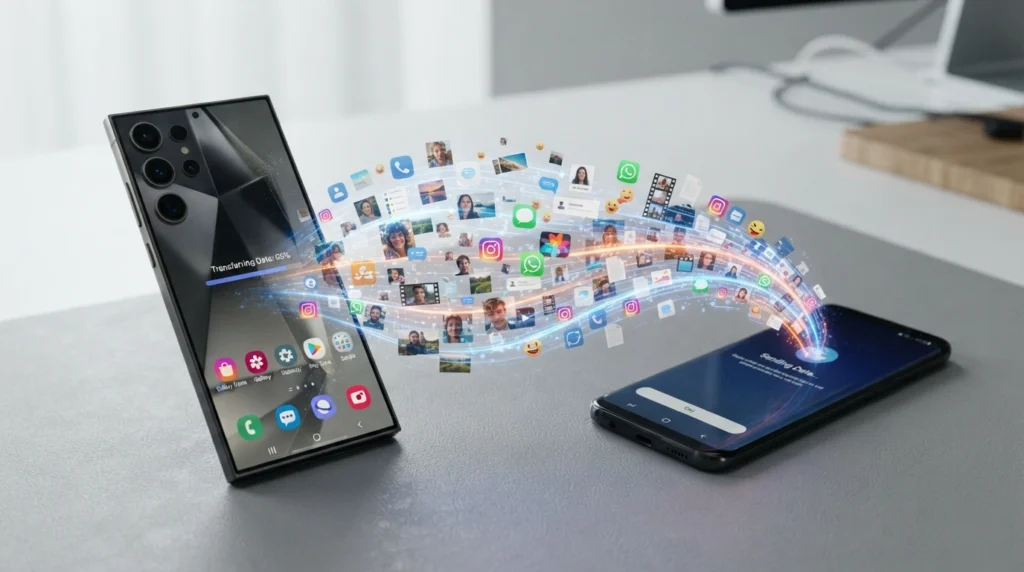
With Smart Switch, their specialized data migration tool for Galaxy devices, Samsung has been attempting to facilitate this shift. The redesigned experience aims to make phone-to-phone transfers easier while enabling customers to send more of the daily information they depend on.
Smart Switch can minimize a lot of the manual labor often involved in configuring a new smartphone for users switching from an older Galaxy device to a more recent Samsung phone. Users can transfer a significant amount of their digital data in a more structured manner rather than installing everything separately and looking for files one by one.
Because smartphones now hold much more than just contacts and photos, the enhancement is very helpful. Years’ worth of conversations, private films, apps, documents, settings, and other crucial data can be stored on a normal phone. Therefore, a contemporary transfer solution must be able to handle more than just simple files.
That is precisely the concept behind the design of the Samsung Smart Switch.
An Overview of Samsung Smart Switches
Samsung’s data-transfer and migration solution for Galaxy devices is called Samsung Smart Switch. It facilitates the transfer of personal data from an old Samsung Galaxy phone to a new one.
Smart Switch can assist with the transfer of contacts, calendar data, images, videos, messages, documents, and compatible apps, depending on the devices and transfer method being utilized.
The service is offered in several formats, including as computer-assisted backup or restoration and mobile-to-mobile transfers. This allows consumers to switch between devices with ease.
The fact that Smart Switch was created with the Galaxy ecosystem in mind is one of its greatest benefits. Samsung offers its own way for clients to set up a Galaxy smartphone rather than depending solely on independent third-party migration programs.
The revised strategy also takes into account modern smartphone usage. Data transfer is no longer simply about relocating a phone book and a few photographs. Customers want a new phone to get acquainted as soon as feasible.
What Makes Using the New Smart Switch Easier?
The emphasis on simplicity will be the most noticeable enhancement for users.
If an interface has too many options or unclear directions, a data-transfer tool may be technically strong but nonetheless challenging for average users. By helping customers through the crucial steps, Samsung’s Smart Switch experience seeks to simplify the transfer process.
A straightforward guided procedure can have a big impact on someone who has never transferred data between devices previously.
Rather than requiring consumers to comprehend intricate backup processes, Smart Switch integrates the transfer into the Galaxy setup process. Users can choose the data they wish to transfer, connect their old and new devices, and let the transfer process happen.
This is particularly useful when switching from one Galaxy phone to another because the procedure doesn’t feel like a totally different technical work, but rather like a continuation of setting up the new device.
An Improved Organization of the Transfer Process
Organization is a significant additional benefit.
Users must be aware of what is being transferred when they transmit a lot of data. Identifying categories like images, contacts, messages, programs, and other data can be made simpler with a straightforward interface.
People frequently have diverse priorities, which makes transparency crucial. While some users could be more interested in contacts, messages, or papers, others might be more interested in photos and videos.
The process becomes less daunting when users have more control over the transfer.
More Than Just Basic Files Can Be Moved by a Smart Switch
The versatility of a modern phone migration tool is one of its best features.
Basic personal data was frequently the target of earlier transmission techniques. Users now anticipate that a migration tool will accommodate a far larger collection of content.
Depending on the source device, destination device, operating system, and transfer method, the Samsung Smart Switch can assist in the transfer of numerous common types of data.
These could consist of:
Photos and Contacts
Videos and Messages
Documents with calendar information
Media, including music
Applications that are compatible
Details of the chosen device
Additional supported personal information
The precise data that is transferable may differ. Additionally, certain programs, operating systems, and account-based services have control over certain data. Because of this, Smart Switch should not be regarded as a guaranty that all of the data from an old phone will show up exactly as it did on the old device.
However, when upgrading a phone, having a single tool that can transfer a variety of personal files can be quite helpful.
Why Data Transfer Is More Important Than Ever
In a sense, smartphones have evolved into individual digital archives.
Years’ worth of family photos, travel films, chats, job documents, and significant connections can all be found on a single device. Additionally, users may regularly use dozens of applications.
It could take hours to move everything by hand.
Imagine purchasing a new Galaxy phone and having to download each app individually, transfer images via a computer, export contacts, and figure out how to send messages. Even if each duty is really easy, it gets tiresome to finish them all at once.
By combining many of these procedures, a migration system such as Smart Switch solves this issue.
For those who are uncomfortable with complex technology, this convenience becomes very valuable. Users may spend more time utilizing their new device and less time worrying about setup when the transfer process is simple.
How the Samsung Smart Switch Operates
The overall procedure is intended to be straightforward.
The user first sets up both the old and new Samsung Galaxy phones. The two phones can be linked wirelessly or via a suitable connection, depending on the technology and software that are available.
After that, the user launches Smart Switch and adheres to the on-screen directions.
The information is sent by the source phone and received by the new Galaxy phone. In general, users can choose what they wish to transfer after reviewing the various categories.
The transfer starts as soon as the selection is finished.
The amount of data being transferred determines how long it takes. Compared to a device with very little saved data, a phone with thousands of photos, lengthy videos, and numerous files may take far longer.
Because of this, users should make sure both devices are fully charged and refrain from interfering with the transfer needlessly.
Cable vs. Wireless Transfer
Depending on the devices involved, a smart switch may offer a variety of transfer possibilities.
Transfer by Wireless
Because consumers don’t necessary need to locate a cable that works with both phones, wireless migration is convenient.
When transferring data across compatible devices, it can be especially helpful. Users can transport their data without first transferring everything to a computer because the devices interact immediately during the transfer.
Convenience is the primary benefit.
However, when there is a lot of data to transfer, wireless transfers may take longer. The experience may also be impacted by connection conditions.
Transfer of Cables
Another useful alternative is a wired connection.
The old and new devices can be directly connected by using a suitable cable. When transferring a lot of data or when users prefer a more direct transfer technique, this can be the better option.
Users should make sure they have the right cable or adapter for their devices because cable compatibility is crucial.
Transferring Information from an Outdated Galaxy Phone
Migration from one Galaxy to another is one of the most obvious applications for Smart Switch.
The tool allows users to transfer a large portion of their digital stuff from an older Galaxy smartphone to a newer model.
This implies that users will acquire accustomed to the new Galaxy phone much more quickly.
Users can bring over critical contacts, photos, movies, messages, and other supported stuff rather than starting from a blank device.
This can greatly reduce the stress of upgrading for longtime Samsung users.
Those who frequently replace their devices can also benefit from the experience. Future upgrades can be considerably simpler if people grasp the fundamentals of the Smart Switch procedure.
Is It Possible to Move Data from an iPhone to a Samsung?
Additionally, Samsung markets Smart Switch as a migration tool for users switching from other smartphone platforms.
Because of this, users transferring from an iPhone to a Galaxy phone will find the program very useful.
Because the two platforms structure data differently, switching between separate ecosystems can typically be more difficult. Supported material can be introduced into the Galaxy environment with the aid of Smart Switch.
Users should keep in mind, though, that certain platform-dependent information, application data, and Apple-specific services could not transfer in exactly the same way.
Before starting the migration, it is essential to check over the categories provided during the transfer and make a separate backup of any information that is especially crucial.
Cloud backup and smart switches are not the same thing.
Although Smart Switch and a conventional cloud backup service are sometimes confused, they have separate functions.
Information is typically kept remotely in a cloud backup so it can be restored at a later time. Smart Switch is mostly concerned with transferring data between devices or utilizing a computer for backup and migration.
Both strategies may be beneficial.
Because it offers an extra degree of security in the event that a phone is misplaced or damaged, a cloud backup is beneficial. Conversely, Smart Switch can facilitate the switch to a new Galaxy device.
It is still advised to have a solid backup plan for critical personal data.
What Users Need to Do Prior to Beginning a Transfer
Even though Smart Switch makes the procedure easier, planning is still crucial.
Users should make sure both phones have sufficient batteries before sharing data. Large transfers can take longer, and users want to prevent power outages during setup.
Checking the Samsung Galaxy phone’s storage capacity is also worthwhile.
The new phone must have enough storage to hold the stuff chosen for transfer if the old handset has hundreds of gigabytes of photos and videos.
Additionally, users should ensure that crucial accounts and passwords are accessible and update their devices whenever feasible.
It’s also a good idea to have a separate backup of particularly precious photos, documents, or other irreplaceable files.
Samsung Smart Switch Transfer Guide: A Comprehensive Guide
First, get both phones ready.
If you intend to perform a wireless transfer, charge the new and old devices and put them close to one another.
Step 2: Turn on the smart switch
On the appropriate devices, launch Smart Switch and adhere to the setup guidelines.
Choose the Transfer Direction in Step Three
Determine that the new Galaxy phone is the receiving device and the old phone is the source.
Step 4: Attach the Equipment
Select a wired or wireless connection option that is supported.
Step 5: Choose Your Information
Review the available data types and select the files and information you want to move to your new smartphone.
Step 6: Begin the Transfer
Start the migration and let the devices finish it.
Step 7: Examine the New Phone
Examine your contacts, images, texts, programs, and other pertinent data once the transfer is complete.
It’s a good idea to check the new gadget right away to see if anything needs to be set up separately.
Is the Samsung Smart Switch Secure?
Using an approved migration solution can be better than depending on unidentified third-party apps for users who are worried about security and privacy.
Samsung’s proprietary data migration tool, Smart Switch, is designed to assist customers in transferring compatible data across compatible devices.
Users should still adhere to fundamental security procedures, nevertheless.
Before beginning a migration, make sure you are aware of the information you are choosing, maintain your phones up to date, and avoid moving data on unknown or compromised devices.
Keeping a separate backup of really crucial files is also a good idea.
What Smart Switches Can’t Always Transfer
No migration solution can ensure that all kinds of data will transfer flawlessly between all device combinations.
Information can be stored in various ways by application developers, and some services store data on their own servers instead of on the phone itself.
Transfer restrictions may also apply to content that is encrypted or platform-specific.
For instance, after installation, an application can ask the user to log in once more. It might also be necessary to manually establish some security details, account credentials, or application-specific settings.
Therefore, rather than viewing Smart Switch as a flawless replica of the previous phone, consumers should consider it a thorough migration help.
Typical Smart Switch Issues: Transfer Takes Too Long
Naturally, processing large volumes of data takes longer. A phone with a lot of high-resolution recordings may take longer to migrate because videos require a lot of storage.
Certain Applications Must Be Reconfigured
This may occur as a result of programs not supporting the transfer of their internal data or requiring new authentication.
Insufficient Storage
Users may need to eliminate superfluous files or pick particular categories if the new phone’s storage capacity is less than the quantity chosen for transfer.
Issues with the connection
Users can try utilizing a compatible cable or moving the devices closer together if a wireless connection starts to falter.
Some Information Is Not There
The originating platform, application, or data type may prohibit some content. Users might have to use the application’s backup or synchronization system in these circumstances.
Why Galaxy Users Should Care About the New Smart Switch
An enhanced migration tool’s greatest benefit isn’t a showy feature. It is the decrease in friction.
Instead of being a significant technical undertaking, a new phone ought to seem like an improvement.
Smart Switch can provide a more seamless transfer for regular Galaxy users by streamlining data conversion and providing a wider variety of information.
This is particularly crucial as smartphones are becoming more and more essential to both personal and professional life.
More data than ever before is being stored on people’s devices, and it can be annoying to lose access to that data while upgrading.
One of the less thrilling but crucial aspects of purchasing a new phone is addressed with a simpler migration process.
Final Decision
For those switching to a new Galaxy smartphone, Samsung’s redesigned Smart Switch is a useful upgrade.
Convenience, greater data-transfer support, and an easier setup process are its main advantages. Smart Switch lets phone migration feel like a typical aspect of configuring a new device rather than treating it as a complex technical procedure.
The application is especially helpful for Galaxy-to-Galaxy upgrades, but its supported migration options are also helpful for those moving from other platforms.
It is crucial to keep in mind that manual setup may still be necessary for some application data, accounts, and platform-specific information. Additionally, users ought to keep separate backups of important files.
All things considered, the upgraded Smart Switch experience is a significant improvement in quality of life. People can enjoy the item they actually purchased more rapidly if they don’t have to spend as much time switching between phones.
FAQ
Samsung Smart Switch: What is it?
Samsung’s data migration tool, the Samsung Smart Switch, enables users to move compatible data from an old handset to a new Galaxy smartphone.
What information can be transferred by a smart switch?
Smart Switch can transfer supported contacts, images, videos, messages, calendar data, documents, media, compatible apps, and other personal information, depending on the devices and transfer method.
Is wireless data transfer possible with Smart Switches?
Yes, compatible devices can migrate data wirelessly, though some large transfers could benefit more from a connected connection.
Is a cable superior to a wireless smart switch?
Neither approach is superior in every situation. While a cable can offer a direct connection and might be helpful for sending a lot of data, wireless transfer is more practical.
Can data be transferred from an iPhone to a Samsung via a smart switch?
For approved data categories, Smart Switch facilitates data conversion from compatible iPhone devices to Galaxy smartphones. However, certain services and application data unique to Apple might need to be handled differently.
Does the Smart Switch erase the old phone’s data?
Rather than serving as a replacement for the previous phone, the transfer process is meant to copy supported data to the new device. Until they have confirmed that crucial data has been successfully transferred, users should continue to use the old device.
Do both phones require a smart switch?
Depending on the devices and transfer scenario, different criteria may apply. Customers should adhere to the Smart Switch guidelines displayed on their phones.
What is the duration of the Smart Switch?
The transfer time is not set in stone. It mostly relies on the devices involved, the connection mechanism, and the volume and kind of data being transferred.
Are app passwords transferred by Smart Switch?
It is not advisable for users to expect that all passwords and authentication credentials will be transferred. For security purposes, certain apps could ask users to log in once more.
Before utilizing Smart Switch, should I make a backup of my phone?
Indeed. Keeping a separate backup of priceless photos, papers, and other crucial data is always a smart idea, even though Smart Switch is made to facilitate relocation.