If you own an iPhone, you most likely use it on a daily basis for social media monitoring, web surfing, texting, calling, and taking pictures. However, even seasoned iPhone users frequently only utilize a small portion of the device’s capabilities.
Apple has included several helpful but often obscure functions in iOS. Some rely on gestures, some are concealed within menus, and some can drastically alter how quickly you execute daily chores. The nicest aspect is that you can utilize them without an expensive accessory or special app.
We’ll look at 15 hidden iPhone features that most people are unaware of in this article, such as keyboard hacks, privacy tools, productivity shortcuts, photo capabilities, and creative ways to personalize your iPhone experience.
Note: Depending on your iPhone model, iOS version, language, and location, different features may be available.
Back Tap Makes Your iPhone’s Back a Shortcut
Back Tap is one of the iPhone’s most neglected features. You can accomplish an action by double-tapping or triple-tapping the rear of your iPhone.
It can be used to run a shortcut, enable accessibility features, open Control Center, capture a screenshot, and carry out other approved tasks.
How to make Back Tap work
Visit:
Accessibility > Settings → Touch → Back Tap
Two choices will appear to you:
Triple Tap Double Tap
Select one, then give it an action.
For instance, you could program Triple Tap to open a frequently used shortcut and Double Tap to take a screenshot.
If you consistently carry out the same task throughout the day, this function is really helpful.
Text from Photos Can Be Copied
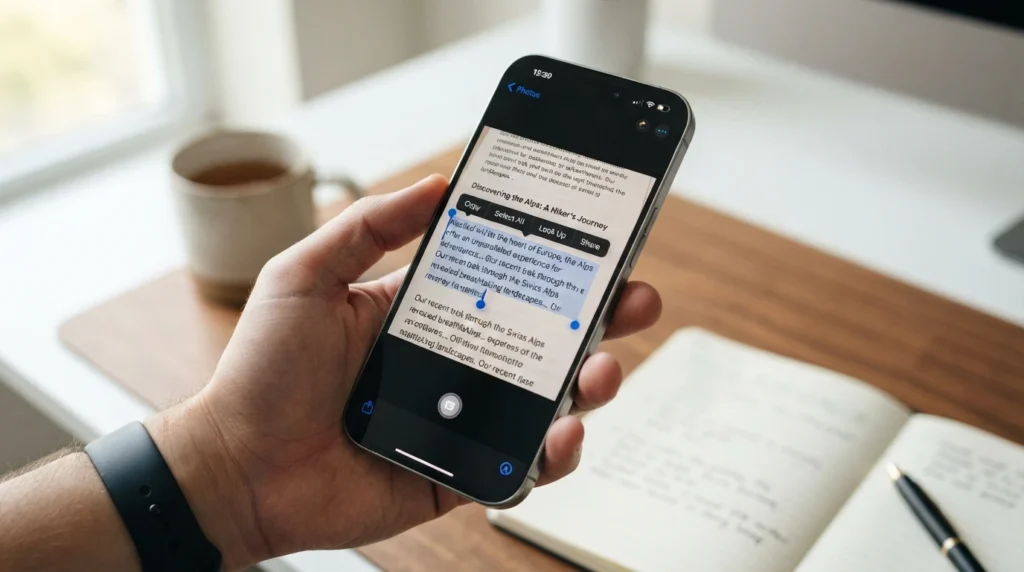
With Live Text, your iPhone can identify text within pictures and photos. When you need to copy text from a sign, paper, screenshot, menu, business card, or handwritten note, this is really helpful.
Look for the Live Text indicator when you open an image with text. Select the desired words by tapping it, then select Copy.
The text can then be pasted into Safari, Notes, Email, Messages, or another program.
Live Text can also identify things like phone numbers, locations, dates, and website information, depending on the content.
You can let your iPhone identify information from a photo rather than manually entering it.
Move Files Between Applications
Many people are unaware of the helpful drag-and-drop gesture supported by the iPhone.
For instance, you can launch the Photos app, hold down an image, and start dragging it. Use a different finger to go to another app while holding the image, then drop it where you need it.
When transferring images, files, text choices, and other compatible items between apps, this can be helpful.
It requires some initial practice, but if you grasp the gesture, multitasking may happen much more quickly.
Use the Notes app to directly scan documents
To digitize documents, you don’t always require a separate scanner program.
There is an integrated document scanning feature in the Notes app.
Choose Scan Documents after opening Notes, creating or opening a note, and selecting the attachment/camera option.
A document’s edges can be automatically detected and captured by your iPhone. Multiple pages can be scanned and saved together.
This is especially helpful for forms, bills, receipts, school records, and other papers.
The benefits of this hidden feature
Document scanning can provide a digital duplicate of a document that is cleaner and looks more professional than a standard snapshot.
Hide Pictures Without Removing Them
It’s not necessary for every image to be in your standard photo collection.
You can remove specific images from the main library by using the Hidden album feature in the Photos app.
Choose a picture, select the relevant menu item, and then select Hide.
The Hidden album can also be secured with Touch ID or Face ID authentication on compatible iOS versions.
Screenshots, private photos, documents, and other media can be conveniently stored away from your main photo grid without being erased.
Utilize the Keyboard as a Trackpad
It can occasionally be annoying to edit text on an iPhone when you have to precisely position the cursor.
There’s a lot simpler way.
Hold down the keyboard’s Space bar on compatible iPhones. You can move the pointer more accurately by using the keyboard’s ability to change into a trackpad-like interface.
The cursor can then be precisely positioned to add, erase, or correct text.
When revising lengthy texts, emails, notes, or documents, this technique is quite helpful.
Use Three-Finger Motions to Quickly Undo or Redo
The three-finger gesture is another useful tool for text editing.
Depending on the app and iOS version, you can undo or redo recent changes when working with text by using three fingers to access editing controls.
Additionally, in supported scenarios, you can try swiping left with three fingers to undo and right with three fingers to redo.
When you unintentionally remove or alter something, this can be far faster than looking through options.
Customize the Charging Limit for Compatible iPhones
For smartphone users, battery health has grown in importance.
Apple offers charging settings to assist users control how much the battery charges on compatible, more recent iPhone models.
Charging controls may be located under the following, depending on your iPhone and iOS version:
Charging → Battery → Settings
A changeable charge limit is offered by certain more recent models.
For those who routinely leave their iPhone plugged in for long periods of time, a lower charge limit may be helpful. However, how you use your phone will determine the best setting for you.
You might want a larger limit if you frequently require the maximum battery capacity during the day.
Make Your iPhone a Level
Sensors on your iPhone can assist in determining the levelness of a surface.
You can use the Measure app to access the feature.
Locate the Level function by opening Measure. Press your iPhone up against the surface or object you wish to examine.
Whether the surface is level is indicated visually by the display.
It is surprisingly helpful for routine activities like hanging pictures, inspecting shelves, or adjusting furniture, but it won’t take the place of expert construction tools for precise work.
Make Use of Spotlight Search Outside of Apps
For many iPhone users, Spotlight is only an app finder.
It is capable of much more.
To launch Search and type a query, swipe down on the Home Screen. Spotlight may search across apps, contacts, messages, files, notes, settings, and other stuff, depending on the iOS version of your iPhone.
Additionally, it can carry out certain computations and conversions.
For instance, you can type a basic mathematical expression into Search rather than using a calculator software.
Because of this, Spotlight is among the quickest methods to locate information on your iPhone.
Use the Shortcuts App to Make Custom Shortcuts
One of iOS’s most potent hidden features is the Shortcuts app.
It enables you to automate action sequences.
For instance, you could make a shortcut that:
sets a timer.
opens a particular playlist
transmits a message
opens the directions.
enables the Focus mode.
combines multiple activities into a single command.
Additionally, shortcuts to widgets, the Home Screen, Siri, and compatible automation triggers can be connected.
Combining several actions into a single shortcut is where the true potential lies.
Your iPhone can do repetitive activities with a single tap if you start trying.
Distribute a Wi-Fi Password Without Entering It
Complicated Wi-Fi passwords might be difficult to type, particularly if they include capital letters, random digits, and symbols.
When certain requirements are satisfied, Apple devices can greatly simplify the sharing of Wi-Fi passwords.
Your iPhone may offer to share the Wi-Fi password if both you and the other person have compatible Apple devices, are properly logged in, and have the necessary connectivity settings enabled.
The recipient may be prompted to connect rather than having the password read out.
It is quicker, more practical, and less likely to result in a wrong password.
Guard Against Unwanted Monitoring
Another area where iPhones have capabilities that many people ignore is privacy.
With iOS’s privacy options, you can see which apps have asked to access your location, contacts, photographs, microphone, camera, and other data.
Visit:
Settings → Security & Privacy
You may then examine each user’s permissions and determine which apps should have access.
Additionally, you may check tracking-related settings and decide whether or not apps can ask for permission to track your activities on the websites and apps of other businesses.
You may greatly increase your control over your personal data by taking a few minutes to go over these settings.
Use Visual Look Up to Recognize Items in Pictures
Occasionally, your iPhone can identify objects, plants, animals, landmarks, artwork, and other subjects in pictures.
Visual Look Up is the name of this feature.
Open a picture and search for the appropriate information icon or visual lookup option if it is supported. You can get further details about the recognized subject from your iPhone.
Imagine traveling and snapping a photo of a strange flora. Rather than doing a manual search right away, your iPhone might be able to locate it.
Treat the results as useful recommendations rather than as a guaranty of identification because the function is not flawless.
Easily Switch Between Open Applications
To switch between apps, you don’t necessarily need to go back to the Home Screen.
To switch between recently used apps on iPhones equipped with Face ID, swipe horizontally along the bottom edge of the screen.
When you frequently flip between two programs, like Messages and Safari, Notes and Mail, or Maps and Music, this gesture is particularly helpful.
It can make navigation feel significantly faster if it becomes muscle memory.
Bonus: Tailor Your Control Center
you can quickly access frequently used controls and settings through the Control Center.
You can change which controls show up and how they are arranged to suit your tastes, depending on the version of iOS you are using.
Consider the features you really utilize on a daily basis. Placing a control in a handy location can save multiple taps if you use it frequently.
Your iPhone may become a far more useful daily tool with a personalized Control Center.
How to Make the Most of Your iPhone
While understanding hidden iPhone features is helpful, combining them yields greater benefits.
For instance, you could use Spotlight to locate the resulting file or contact, Back Tap to initiate a shortcut, and Live Text to extract data from a picture.
Instead of assuming your iPhone can just perform what is shown on the Home Screen, it’s important to investigate the settings.
While some features are exclusive to particular iPhone generations, Apple often adds new capabilities through iOS releases.
This implies that there may be helpful tools on your iPhone that you have never used since you haven’t sought for them.
FAQ
Which hidden iPhone function is the most helpful?
Back Tap, Live Text, document scanning, keyboard trackpad mode, and shortcuts are among of the most practical features for daily chores, yet there isn’t a single perfect feature for everyone.
Is Back Tap compatible with all iPhones?
A compatible iOS version and an iPhone model that supports Back Tap are prerequisites. It’s possible that your program or device doesn’t support it if you don’t see the option under Accessibility options.
Is it possible for an iPhone to scan documents without an app?
Indeed. You may scan a variety of documents without installing a third-party scanner thanks to the Notes app’s integrated document scanning feature.
Is it possible to copy text from an iPhone picture?
Yes, provided that the image has readable text and Live Text is supported. The text can be chosen and copied into a different application.
How can I extend the life of my iPhone battery?
Reducing pointless background activities, controlling display settings, utilizing optimal charging capabilities when they are available, and updating iOS can all be beneficial. Battery age and usage habits also have a significant impact on battery performance.
Are the iPhone’s hidden features free?
The majority of iOS’s built-in features, such Live Text, Notes scanning, Back Tap, Spotlight, and several privacy controls, don’t require an additional paid membership.
Conclusion
The iPhone is far more powerful than it first seems. Time-saving features that don’t require extra apps include Back Tap, Live Text, document scanning, keyboard trackpad mode, shortcuts, Visual Look Up, privacy controls, and Spotlight Search.
The most important lesson is straightforward: don’t judge your iPhone by its home screen. Its built-in apps, settings, and gestures contain many of its most helpful capabilities.
Back Tap, Live Text, document scanning, keyboard trackpad mode, and shortcuts are the first five features on this list that you should attempt. They can significantly speed up regular iPhone use and are simple to experiment with.