It can be annoying when your iPhone’s storage runs out, particularly if the Photos app holds years’ worth of memories you don’t want to lose. Even if protecting your pictures and movies is your first responsibility, you can see messages like “iPhone Storage Almost Full.”
The good news is that you can recover important storage without necessarily erasing your photos. There is much more on your iPhone than just pictures. Gigabytes of space can be silently used by apps, downloaded videos, communications, browser data, music, temporary files, system data, and previous downloads.
This post will teach you how to increase your iPhone’s storage capacity without erasing any images while simultaneously enhancing the device’s general functionality. Both newer and older iPhone models can benefit from these techniques, albeit the precise menu names may differ slightly based on your iOS version.
Why Is the Storage on Your iPhone Full?
Knowing what is truly consuming your storage is helpful before relocating or erasing anything.
Visit:
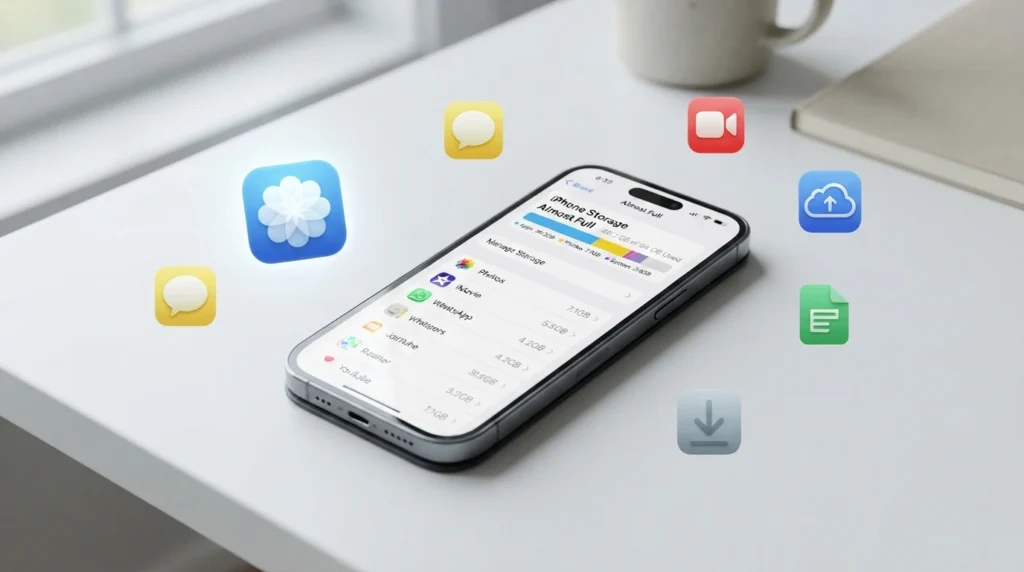
iPhone Storage → General → Settings
Your iPhone will show a storage breakdown after a short while. Usually, you’ll see categories like:
Applications, Pictures, Media, and Messages
Mail, Safari, iOS System Data, Files, and Downloads
You might find that photos aren’t even the largest user of storage. Surprisingly enormous amounts of space can be occupied by a few large games, social networking apps, downloaded movies, podcasts, or outdated message attachments.
Therefore, rather than touching your photo library, it is advisable to first discover the largest storage categories and clean those regions.
Turn on iPhone Storage Optimization for iCloud Photos
Optimize iPhone Storage is one of the simplest ways to minimize the space taken up by images.
If you have adequate iCloud storage, this option is quite helpful.
When optimization is enabled, your iPhone retains smaller, more compact versions of your photographs and videos on the device while your original, full-resolution versions are kept in iCloud. Your iPhone can download original files when you need to see or edit them.
To verify the configuration, visit:
Settings → [Your Name] → Photos → iCloud
Look for the “Optimize iPhone Storage” option.
This does not imply that your pictures are just erased. Rather, the gadget handles local storage more effectively.
Why this is beneficial
Since newer iPhones can capture high-resolution video, videos are frequently the largest storage issue. One lengthy film may take up hundreds of megabytes or more.
Therefore, optimizing local photo storage can have a significant impact without having you to erase memories by hand.
Important things to think about
The physical storage on your iPhone is not connected to iCloud storage. You might need to expand your iCloud storage or find another reliable backup option if your iCloud account is also full.
Get Rid of Apps You No Longer Use
One of the easiest ways to restore storage is through unused apps.
Open
iPhone Storage → General → Settings
Apps will be arranged based on the amount of space they take up.
Search for:
Games you don’t play anymore
Apps for shopping that you hardly ever use
Outdated editing programs
Applications for duplicate utilities
Travel applications from past journeys
Apps for streaming that you temporarily installed
Apps for social media that you no longer require
You can pick an app and decide whether to delete it or offload it.
Apps should be offloaded rather than deleted.
Offloading might be a helpful alternative if you wish to remove an installed application while keeping its documents and data intact.
iOS removes an app when it is offloaded, but it retains certain related data so you can reinstall it at a later time.
This is especially helpful for big apps that you don’t often use.
For instance, unloading a game can instantly save up space if it takes up several gigabytes and you only play it once every few months.
Remove Videos Downloaded from Streaming Apps
Although streaming services make it easy to enjoy content without an internet connection, downloaded TV shows and movies can take up a lot of storage.
Examine applications like:
Netflix, YouTube, Disney+, Prime Video, and Spotify
Podcast applications
Additional offline media applications
The application determines the precise storage controls.
Locate categories like Downloads, Offline Content, and Downloaded Videos by opening the appropriate application.
You can remove offline content that you have already viewed or don’t need.
This enables you to restore possibly several gigabytes of storage while keeping your personal images.
Organize Big Message Attachments
Videos, GIFs, voice recordings, documents, and images from years ago may be stored on your Messages app.
Long after you have forgotten about them, these attachments may still be stored.
Visit:
General → Settings → iPhone Storage → Messages
You might notice categories for big attachments and other kinds of information, depending on the version of iOS you are using.
Start by going over the biggest items.
Concentrate on superfluous huge attachments rather than erasing entire discussions.
An old movie shared in a group chat, for instance, may take up a lot more storage space than hundreds of regular text messages.
A more astute strategy
Start with the biggest files. A few large videos could fix the issue if you need to free up 5 GB, so there’s no point to spend an hour eliminating small attachments one at a time.
Remove Superfluous Data from Safari Websites
Over time, Safari may gather information from websites.
This could consist of:
Cookies and cached files
Details about the website
Information about browsing
Safari’s settings can be examined by:
Safari → Settings
There may be options for deleting website data and history on your iOS device, depending on the version.
But keep in mind that deleting website data may cause you to log out of some websites and erase some saved browsing history.
Before deleting important browser data, make sure you are aware of your passwords if you regularly visit websites that require logins.
Examine the Downloads Folder and Files App.
Another storage location that people frequently forget about is the Files app.
Open Files → Look through and examine places like:
My iPhone’s Downloads
iCloud Storage
Additional linked storage locations
Search for the old:
PDFs
ZIP files
Records
Installation files
Presentations
Videos
Recordings of audio
Files that are duplicates
For months, large downloads may go unnoticed.
Remove a file if it is no longer needed.
Consider transferring it to a suitable cloud or external storage option first if it is crucial but does not need to be kept locally.
Get rid of podcasts and offline music
When a lot of episodes or songs are downloaded, music and podcast apps may quietly use up storage.
Check the content that has been downloaded by opening your music or podcast app.
Take out:
Podcasts you’ve already listened to Previous episodes
Playlists that were downloaded for earlier travels
Offline albums you no longer require
When you get an internet connection later, you can still stream this content.
Make it a practice to review offline downloads after you get home if you frequently download media for travel.
Examine Big Videos Without Removing Your Picture Collection
You don’t have to remove all of your photos if Photos is taking up the majority of your storage.
Rather, find the files that take up the greatest space.
Usually, the first thing to look into is videos.
Search your library for:
Extended 4K recordings
Recordings of screens
Videos that are duplicates
Several iterations of the same video
Videos that were inadvertently captured
Slow-motion videos that are unnecessary
Before deleting its local copy or relocating it to a different storage location, make a backup of any crucial videos.
The intention is not to erase memories at random. The objective is to intelligently handle big files.
Cut Down on Storage Used by Social Media Apps
Cached content, temporary files, and other data can be accumulated by social media apps.
Over time, apps like Facebook, Instagram, TikTok, and similar platforms may grow to unexpectedly massive sizes.
Visit:
iPhone Storage → General → Settings
Examine how big these apps are.
If you know your login credentials and are aware that locally stored app data might not survive the deletion, you might choose to remove and reinstall a program if it has grown abnormally large.
Make sure you have a backup or sync of any crucial drafts or locally stored content before proceeding.
Sometimes this approach is more efficient than repeatedly deleting specific items from the app in terms of reducing the total quantity of accumulated app data.
Remove Outdated Voice Memos
Voice recordings are easily forgotten.
Examine your recordings by using the Voice Memos app.
You could discover:
Previous lectures
Recordings of meetings
Recordings of tests
Unintentional recordings
Audio duplication
Voice notes that are no longer required
Long recordings might take up a lot of disk space.
Make sure you have copied everything vital to a secure location before deleting it.
Examine the mail attachments
Storage utilization may also be impacted by email attachments.
Old mails with huge attachments may take up local space or increase the Mail app’s storage footprint if you use it frequently.
Think about removing pointless emails and attachments, particularly those from previous exchanges.
Your entire inbox does not need to be deleted. Pay attention to mails that contain huge files or information that you no longer require.
After cleaning storage, restart your iPhone.
Restart your iPhone after making many storage adjustments.
iOS can recalculate available storage and renew temporary processes with a restart.
It can be helpful following a significant cleanup, but it is not a magic trick for reclaiming vast amounts of space.
Restarting your iPhone may also improve its responsiveness if it has been operating for a while and feels slow.
Update iOS
Updating the operating system on your iPhone can improve security, repair bugs, and boost performance.
You shouldn’t anticipate that every iOS update will result in more free storage, though. During installation, some updates could need a significant amount of free space.
Make sure your iPhone has adequate storage before updating.
Clean up any useless apps and downloads first if your device is nearly full.
Utilize the iPhone Storage Settings’ Suggestions
Recommendations for freeing up space can be found on the iPhone Storage screen.
Depending on your device and usage, these suggestions can change.
You may see recommendations pertaining to:
Removing programs that are not in use
Examining extensive attachments
Eliminating downloaded media
Improving images
Removing outdated content
Don’t take every suggestion at face value. Before deleting anything, go over each one and make sure you know what will happen.
This is particularly crucial if the content is valuable or hard to replace.
When it’s appropriate, remove recently deleted items.
When a file is deleted, the storage may not always be restored right away.
For a while, images, movies, and other stuff might stay in a Recently Deleted section.
Permanently deleting those files from the Recently Deleted section can liberate the related storage sooner if you have already verified that you no longer require them.
But exercise caution.
Recovering an object that has been permanently removed could be challenging or impossible.
Before clearing a Recently Deleted folder, always make sure.
How to Increase iPhone Storage Without Losing Vital Information
An effective storage cleanup plan adheres to a straightforward sequence:
First, examine your storage
Visit:
iPhone Storage → General → Settings
Step 2: Determine the largest categories
Avoid speculating on the destination of your storage. Take a look at the figures.
Step 3: Eliminate transient or interchangeable content
To begin with:
Previous downloads Viewed videos
Podcasts and offline music
Unused applications
Large attachments for messages
Step 4: Safeguard critical documents
Before erasing anything, make a backup of any crucial papers, movies, recordings, and other irreplaceable stuff.
Step 5: Make the most of your photo storage
Optimize iPhone Storage is something to think about if you use iCloud Photos.
Step 6: Give the gadget a restart
Allow iOS to update its storage calculations.
Step 7: Verify storage again
See how much space you were able to reclaim by going back to the iPhone Storage screen.
What is the recommended amount of free storage on an iPhone?
Because storage demands vary depending on the device, iOS version, apps, and usage habits, there is no standard amount that all iPhones must have.
But generally speaking, having some free space is preferable to running with almost no storage at all.
Routine operations can become more challenging when your iPhone is almost full, especially when apps require temporary working space or when you’re trying to download files, install updates, or record new videos.
Check your storage on a regular basis rather than waiting until the “Storage Almost Full” alert appears.
The issue can be kept from getting worse by cleaning up downloads and unused programs once a month.
How iPhone Performance Can Be Enhanced by Storage Cleaning
While freeing storage won’t solve every speed issue, managing an iPhone with very little free space might become challenging.
Following the removal of superfluous files, you could observe enhancements like:
More space for fresh images and videos
Simpler updates for apps
Additional room for transient files
Reduced storage alerts
Increased download flexibility
Reduced need for urgent cleanup
An old battery, demanding apps, software problems, or hardware constraints could be the cause of your iPhone’s slowness if it persists even after you’ve cleared out a large amount of storage.
Benefits and Drawbacks of Freeing Storage Without Removing Pictures
preserves your priceless snapshot memories
retrieves space from files that are not as important.
can enhance daily usability
minimizes storage alerts
aids in getting the device ready for upgrades
promotes improved digital organization
Several megabytes can be recovered without affecting your primary photo collection.
Certain cleaning techniques take time.
Cloud storage could be more expensive.
Large software can be difficult to reinstall.
You might log out of websites if you clear your browser’s data.
You might require an internet connection later if you remove downloads.
Incorrect file deletion can result in irreversible data loss.
Examining files before deleting them and making a backup of anything you can’t replace is the safest course of action.
Things You Shouldn’t Do to Increase iPhone Storage
Websites and programs that claim to “clean your iPhone instantly” should be avoided.
Generally speaking, you don’t need dubious third-party cleaning apps to handle regular iPhone storage.
Refrain from:
Installing unidentified cleaning applications
Removing files without reviewing them
Removing backups without knowing why they are there
deleting pictures permanently before making a backup
Observing arbitrary configuration profiles found on websites
granting unwarranted access to personal information
The best place to start is generally with the built-in iPhone storage tools.
The Greatest Long-Term iPhone Storage Practices
It’s helpful to free up storage once, but it’s much better to keep the issue from happening again.
Try these routines:
Examine downloads each month.
Movies, podcasts, papers, and other files that you no longer require should be deleted.
Don’t store extraneous offline media.
If you don’t have internet access, only download what you can actually utilize.
Regularly check huge apps
After upgrades and more content downloads, games and editing programs can grow significantly.
Control the attachments in messages
Group discussions can quickly gather large videos.
Make sensible use of cloud storage
Although cloud services can lower the amount of local storage needed, be sure to know if data are truly saved locally or are merely accessible online.
Pay attention to video recordings
One of the quickest ways to load your iPhone is with high-resolution video
FAQ
Is it possible to increase iPhone storage without erasing my pictures?
Indeed. Unused programs, downloaded media, huge message attachments, obsolete files, podcasts, music downloads, and other superfluous stuff can all be removed to restore storage. Optimize iPhone Storage can also help you store less photo data locally if you use iCloud Photos.
Do images get erased when iPhone storage is optimized?
When you use iCloud Photos, Optimize iPhone Storage keeps the full-resolution originals in iCloud while reducing the amount of local storage your photo collection uses. Before using cloud storage, confirm that your photographs have successfully synced.
I don’t have many pictures, so why is my iPhone’s storage full?
Significant storage can be used by apps, movies, messages, downloads, music, podcasts, and system-related data. To view precisely what is occupying space, navigate to Settings → General → iPhone Storage.
What occupies the most space on an iPhone?
High-resolution videos, massive games, downloaded movies, music, podcasts, and message attachments are typical examples of the largest storage consumers, however this varies from person to person.
Does removing apps result in more storage?
Indeed. When an app is removed, the space it uses and the local data it contains are usually released. Offloading can be a less harmful solution if you might desire the app again.
Is clearing Safari data safe?
In general, the answer is yes, although deleting browsing data may cause you to sign out of websites and erase information from them. Before you confirm, be sure you understand what will be eliminated.
How can I swiftly free up storage?
Under Settings → General → iPhone Storage, start with the biggest items. Unused programs, big downloads, offline videos, outdated podcasts, and pointless message attachments should all be deleted. These frequently yield results more quickly than erasing hundreds of little files.
Can you free up storage on an iPhone by restarting it?
Restarting might clear some temporary resources and update storage calculations, but it shouldn’t be regarded as a significant storage-cleanup technique. Eliminate superfluous files and handle big apps and downloads for significant storage recovery.
Does iCloud increase the amount of storage on my iPhone?
The actual storage on your iPhone is not the same as iCloud storage. Although purchasing iCloud storage does not physically expand the iPhone’s built-in storage capacity, using iCloud images with optimized local storage can minimize the amount of space your images take up on the device.
How frequently should my iPhone’s storage be cleaned?
It is a useful practice to do a fast check once a month. Pay close attention to files in the Downloads folder, unused programs, huge message attachments, podcasts, and downloaded videos.